Firmware upgrades for the BlueAngel Q7 – A HowTo
At COMEX 2009, I picked up a Chinese-made set-top media player, called the Q7. Made by a company called Blue Angel, the tiny box packs in an amazing feature set:
- Supports RMVB,AVI,DIVX,MKV,MOV,HDMOV,MP4,M4V,PMP,AVC,FLV,VOB,MPG,DAT,MPEG file formats
- Does HDMI Output upto 720P
- Built-in Flash memory of 2GB and USB-Host Support
The feature I was most intrigued by however, was a note buried in the instruction manual – it claimed that the manufacturer would provide firmware upgrades for the device!
Since this a device manufactured in China, even finding the manufacturer’s website took some digging around. Eventually, I did locate the site and after viewing it through Google Translate, I was able to download the upgrade installer. Awesome right?
Well not quite – as I had to go through quite a few hoops to actually get the installer to actually run. I figured that I might as well put down the steps on the Web for other folks who might be having the same problems as I did.
OS Compatibility Warning: The installer simply does not work under Vista. Trying XP Mode etc. on Vista is of no use. I have no idea whether it will work under Wine/Linux but for now I recommend sticking to Windows XP.
1. The latest firmware upgrade for the Q7 can be found here. Scroll down and look for the link text in green (or you can try this direct link, but I have no idea how long it will work)
2. The site is a bit slow, so be prepared to wait 15-20 mins for the file to download, even on a broadband connection.
3. Once you have extracted the files, you will wind up with a set of folders like so:
4. Extract the 2nd set of RAR files and we get the following:

5. If you are on a English-language version of Windows, the Mandarin characters can cause a lot of problems with launching the installer. I recommend renaming the files to something like “q7upgrade.img” or the like.
6. I also suggest placing the files under the root of C: drive or some partition. It definitely won’t work with folder names containing spaces. Here’s the folder structure that worked for me:

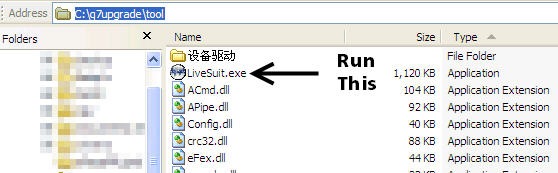
7. Next you need to launch the installer application. The 2nd round of RAR file extraction would have created a folder and a disk image. Look for an application called “LiveSuit.exe” in the folder:
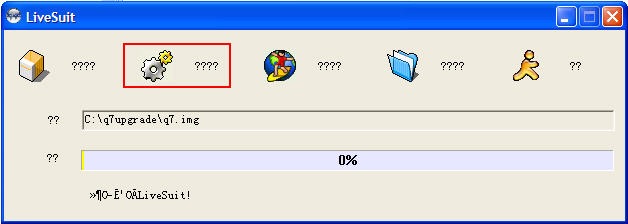
8. When you launch LiveSuit.exe, you will get the following window:
Note: If you would like to see the actual Mandarin characters used in the installer and get a translation of what they mean, please see Ashwin Nanjappa’s comment on how to enable Chinese character support & translations in Windows. Thanks Ashwin!
9. Click on the first icon (a packing box?) and locate the IMG file that you had extracted earlier. Once you do this, the second “gear” icon becomes active:
10. Now plugin the Q7 into your PC. It will be recognized in Windows as a USB 2.0 Flash Device
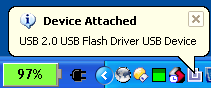
11. Once you get the “Hardware installed” popup in Windows, click on the gears icon in the LiveSuit app (Step 9 above)
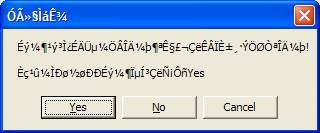
12. You get a prompt of which very little is readable, except for one very important button:
13. You will now be prompted to install drivers for the device. The USB Drivers are located in a subfolder inside the folder you launched the Livesuit installer from, i.e:

Once you have navigated to the correct folder with the drivers, your “install drivers wizard” should look like this:
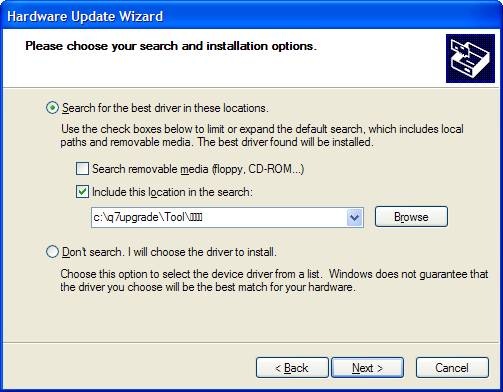
14. You might have to run the Driver install wizard twice before the actual upgrade starts. Once the Driver install completes, the LiveSuit installer takes over:
15. Eventually, you get another unintelligible popup:
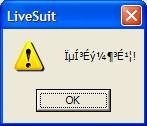
16. At this point, you have upgraded your Q7’s firmware – Congratulations! What do you get from this you might ask? Well the highlights are:
- Proper resume from Standby when using the power button on the remote
- Support for SUB format subtitles
- Better MKV Support
- Support for UTF-8/UTF-16 encoded subtitles.
Not bad at all eh? The entire release note is available on the webpage where the firmware is hosted, but you will have rely on Google Translate if you can’t read Mandarin – here’s a translated link
Post-Firmware Upgrade Warning:
- After the upgrade, the On-Screen menus default to Mandarin again. You will have to go into the Settings menu and select the “Globe” icon to be able to change the language back to English.
16. If you are wondering how to exit the LiveSuit application, here’s a hint – it isn’t the regular close button on the App window. Instead you need to click the little running man/AIM icon:

That’s the HowTo. Let me know in the comments if this helps or you have any problems. Happy Viewing!
This entry was posted on Sunday, October 4th, 2009 at 5:06 pm and is filed under Geek. You can follow any responses to this entry through the RSS 2.0 feed. You can leave a response, or trackback from your own site.
on October 4, 2009 at 11:53 pm Ashwin Nanjappa wrote:
Awesome! Since yours might be the only English language post on updating the firmware for this device, I am pretty sure this post will build up a reputation (and Google Rank) over time.
BTW it looks like you do not have complete Chinese Unicode character support on your Windows system. So many of your dialogs show ??? instead of Chinese characters.
on October 5, 2009 at 10:21 am antrix wrote:
Thanks for blogging this! Since I don’t have XP anywhere, anymore, I might have to come down to your place and ask you do to the upgrade for me
The bit about ‘better mkv support’ sound especially good since I tried out a blue-ray -> mkv rip on the box this weekend and it was basically unplayable due to lots and lots of dropped frames. Hopefully, the upgrade helps with that.
Any idea if the upgrade resolves the ‘failed reading from external hdd’ issue that we discussed? I have basically given up on using an external hdd and am relying on a external flash drive. It may be dog slow when it comes to write times but apparently faster at read since videos play without issue from it.
on October 5, 2009 at 10:23 am antrix wrote:
I meant basically un-watchable.
on October 5, 2009 at 10:25 am Balaji wrote:
Ashwin – heh yeah, I have a habit of writing blog posts on obscure topics that wind up ranking pretty high on Google
Re: chinese character support – yes, I haven’t installed the full language pack. I left it that way for the guide because I figure most people will be in the same situation and it would help if the guide reflected what they are likely to see on screen. Anyone who takes the trouble to install a Chinese language pack on a English-language install of Windows probably also knows enough Mandarin to be able to use the application prompts instead of this guide
on October 5, 2009 at 10:38 am Ashwin Nanjappa wrote:
Antrix: For your Blu-Ray MKV dropping frames, have you checked the size of the video file? If it is a large file (6GB for movie length), meaning larger frames and more frames per second, the BlueAngel may simply not have the CPU gumption to render it without dropping frames. I simply cannot enjoy Blu-Ray MKV files on my (old) laptop for this reason. (For reference on this laptop’s CPU capability, DVD ripped videos can be played with no problems.)
I had to resort to video compression to reduce the size:
http://superuser.com/questions/19482
on October 5, 2009 at 10:45 am Ashwin Nanjappa wrote:
English speakers, if you want to be able to view and understand Chinese software dialogs, here is what you need to do:
1. Install the complete Asian/East-Asian language files. Windows 2000, XP, Vista and Windows 7 all have complete Unicode support, right from the Windows kernel upwards. You just need to install these extra files from your installation source. You should be able to view Chinese text properly after this step.
2. Install the Google-Kingsoft Chinese dictionary, which can be downloaded for free here:
http://www.google.cn/rebang/product/dictionary/dictionary.html
What is so great about this software? After you install and execute it, you can hover over *any* Chinese text and it will show the English meaning of that word. You can absolutely hover your mouse cursor on *anything* including text in any dialog. Using this, you should be able to make sense of Chinese software dialogs.
on October 5, 2009 at 12:02 pm Balaji wrote:
antrix – Re: needing Windoze – You know the place, just give me a call and you can stop by anytime
The upgrade doesn’t seem to fix the hang when reading from external disk problem. Internal/Flash memory works fine. However, I haven’t tried swapping out disk cables to see if that improves access speeds.
I’m going to cautiously agree with Ashwin N on whether the box can play Blu-Ray rips well. It really doesn’t seem to have a lot of processing power. How are you connecting your external flash drive? If it’s thru USB, then you might be again getting hit by the slow transfer rates from the USB port. You might want to try putting the rip on a SDHC card and playing the movie off that.
on October 5, 2009 at 12:13 pm Balaji wrote:
Ashwin – thanks for the detailed note! The Google-Kingsoft dictionary sounds like it would have been pretty handy when I struggling with the installer initially. I’ve added a note in the article pointing to your comment
on October 5, 2009 at 6:52 pm antrix wrote:
What I tried playing wasn’t a direct Blue Ray rip but a Blue Ray rip encoded to x264 in an MKV container.
Actual encoding specs from the nfo:
VIDEO: x264/1.687Kbps/1.280×688/23.976 fps/
AUDIO: AC-3 384 Kbps/6 chnls/48.0 KHz
on October 5, 2009 at 7:09 pm Ashwin Nanjappa wrote:
Antrix: I meant an encoded Blu-Ray video too. Notice the resolution, the video bitrate, the audio bitrate and the 6 audio channels! I am guessing a 2-hour video/movie at these specs will easily be 4 GB. IMO decoding so much resolution/bitrate/channels is pretty heavy lifting for your generic video playback device. DVD video has similar file size (the VOBs), but it uses older (and thus lighter) video/audio formats at smaller resolution/bitrate.
on October 6, 2009 at 1:33 pm Balaji wrote:
Antrix – I have played regular XVID at that resolution without any issues. Send me a link to this file? I can try it out on the upgraded firmware and let you know what happens.
on October 6, 2009 at 1:53 pm Ashwin Nanjappa wrote:
Balaji: Your XVID also had 6 384 kbps audio channels?
on October 6, 2009 at 3:54 pm Balaji wrote:
Ashwin – heh, no. Most of the XVID I watch is barely TS-quality, so I doubt I’m pushing the decoders on the Q7 very much.
But I figure if the ginormous MKV that antrix is trying still stutters on my firmware-upgraded Q7, atleast he’ll know that’s is definitely an issue with the lack of processing power on the box.
on July 8, 2010 at 6:58 pm pankaj wrote:
i try to follow the prosidure but itz end with some error 761 help me plese
on July 12, 2010 at 10:14 am Balaji wrote:
Hi Pankaj,
Could you let me know at what step you got the error? Also, what OS are you running the program on?
on April 15, 2011 at 11:29 pm Bingo wrote:
Hi Balaji,
I have a Q7. The other day, when I used it, there was no video display on my TV. I tried both the HDMI then the RCA plugs but there was no video. Any idea how I can make it work? The green and red LEDs light up when I power it up.
Could a firmware upgrade help. Would it be possible for you to post or send it me. I tried the site but it is no longer there.
Thanks in advance for your help.
on April 16, 2011 at 2:15 pm Bingo wrote:
Hi Balaji,
I found the firmware and did as instructed above. Superb! Thanks a lot!
Unfortunately, my Q7 still has no display. I was wondering if there is a schematic diagram for the player anywhere. In case you know of any, please post it too.
Thanks a lot!